Searching within Google has changed over time to allow for images, real live data and instant data to appear within your search results without having to switch to Images, Maps, or another search area. Google Image search specifically has changed over time to allow you to upload a picture, taken or url link, to be able to find information related to that picture that you want to know more about or find pictures similar to the picture to extend off of.
When you go specifically to www.google.com (do not search using the Google Toolbar) and then switch over to the Image search by clicking Images at the top of the web site, you will switch over to Google Image search.
You are still more than welcome to search for an image by typing in information
or
you can click on the camera at the end of the search bar and
Paste Image Url
or
Upload an Image
When you click Upload an Image you can either drag a picture into the search bar on the screen or Browse for the image on your computer. Once you Upload an Image you can search for information related to that Image.
Pretty cool tool to use if you have a picture/drawing you created that you would like to see if it is similar to something else on the Internet, or if you have images/pictures/drawings that you have no clue who created them.
Also try out this web site: Unofficial Google Image Search by Drawing where you can draw a picture, take a picture or upload a picture to draw on and see if there are similar ones on the Internet.
Showing posts with label google. Show all posts
Showing posts with label google. Show all posts
Monday, March 5, 2012


Thursday, January 5, 2012
Google Docs Templates
Alright,
So Google Docs is starting to become more of an everyday or at least 1 time a week usage for educators. The reason being is the collaboration piece of being able to work on a document together and/or have someone help out you instead of providing a document to someone and then you having to do the work to enhance the document based on their suggestions. Google Docs provides the opportunity for many educators to work together to better enhance their instruction and learning, as we have come to know that we do not know everything.
Another part of Google Docs that greatly supports the collaboration piece is find a Template within Google Docs that someone has so graciously shared for us to look at for potential use or at least to spark ideas to better guide our thoughts.
Once you are logged into Google Docs, to find a Template,
Click on "Create" and then "from Template"
Once you click on "from Template" you can sort between Public Templates, HDCSD Templates, Templates I've Use, My Templates.
Click "Public Templates"
Once in "Public Templates" the easiest way to find what you are looking for, such as Periodic Table, is by searching for it at the top of the page.
Once you search for a Template you can "Preview" it or if you click "Use This Template" it will actually be put it within your Google Docs list for your use.
If you Use This Template, depending on how it was created, you either have to use it as is or you can modify it and save it as your own.
I have found some great Templates to use related to the Periodic Table, Note Cards, and more.
So Google Docs is starting to become more of an everyday or at least 1 time a week usage for educators. The reason being is the collaboration piece of being able to work on a document together and/or have someone help out you instead of providing a document to someone and then you having to do the work to enhance the document based on their suggestions. Google Docs provides the opportunity for many educators to work together to better enhance their instruction and learning, as we have come to know that we do not know everything.
Another part of Google Docs that greatly supports the collaboration piece is find a Template within Google Docs that someone has so graciously shared for us to look at for potential use or at least to spark ideas to better guide our thoughts.
Once you are logged into Google Docs, to find a Template,
Click on "Create" and then "from Template"
Once you click on "from Template" you can sort between Public Templates, HDCSD Templates, Templates I've Use, My Templates.
Click "Public Templates"
Once in "Public Templates" the easiest way to find what you are looking for, such as Periodic Table, is by searching for it at the top of the page.
Once you search for a Template you can "Preview" it or if you click "Use This Template" it will actually be put it within your Google Docs list for your use.
If you Use This Template, depending on how it was created, you either have to use it as is or you can modify it and save it as your own.
I have found some great Templates to use related to the Periodic Table, Note Cards, and more.
Friday, December 16, 2011
Web Browsers : Search Engines "Boolean Searches"
Searching on the Internet can be a daunting task, sometimes, if you do not word your search words correctly or in the correct order. Boolean searches have been around for quite some time and allow words/phrases to be searched separately, searched together, or not searched at all. And it all stems from the uses of these three words:
or
and
not
Using the word "or" allows you to search for cats or dogs so at least 1 of the search words will come up with information.
Using the word "and" allows you to search for cats and dogs so both search words will come up with the information together, not separately.
Using the word "not" allows you to search for cats not dogs so cats is the only search word searched and search information on dogs will never show up.
Separating your search words using the boolean search words "or, and, not" will make a difference in the information that is searched and displayed correctly. Also try using the characters:
+ (must search for this word) Such as Chocolate +cake
- (must NOT search for this word) Such as Chocolate -cake
" " (searches for phrases of words together) Such as "Hampton-Dumont Bulldogs"
Check out more visual diagrams with these search terms at: http://www.internettutorials.net/boolean.asp
Check out more visual diagrams specific to Boolean Searches in Google at: http://www.internettutorials.net/basic-search-techniques.asp
Boolean search activity: http://www.teachingideas.co.uk/welcome/5223.htm
Thursday, December 8, 2011
Google Calendar: Extras
Did you know that you can add Other Interesting Calendars to your Google Calendar account? I did, as of 3 pm today. I was trying to figure out how to enter a subscription URL to a SchoolFusion calendar when I stumbled upon being able to "Browse Interesting Calendars" within the Other Calendars features. If you have a google account, for any purpose such as Gmail, Google Docs, or Blogger you can create a Google Calendar.
If you have or create a Google Calendar you can add these Other Calendars.
Once in your calendar you will notice "My Calendars" and "Other Calendars" on the left hand side.
Click on the down area to the right of "Other Calendars" and choose "Browse Interesting Calendars."
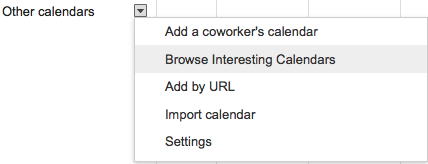
You can then browse and subscribe to a variety of Interesting Calendars ranging form Holidays, Sports and More which includes Phases of the Moon and Sunrise and Sunset for your location, to name a few.


If you have or create a Google Calendar you can add these Other Calendars.
Once in your calendar you will notice "My Calendars" and "Other Calendars" on the left hand side.
Click on the down area to the right of "Other Calendars" and choose "Browse Interesting Calendars."
You can then browse and subscribe to a variety of Interesting Calendars ranging form Holidays, Sports and More which includes Phases of the Moon and Sunrise and Sunset for your location, to name a few.
Click Subscribe to add these calendars to your Other Calendars list for personal use and our teacher use.
Click on Other Calendars to view the Interesting Calendars that you Subscribed too.
Wednesday, December 7, 2011
Evolution of Google & Google Search
Check out the information below regarding the Evolution of Google as the company http://www.google.com/insidesearch/index.html
and
the Evolution of Google Search as the search engine.
http://www.techlearning.com/Default.aspx?tabid=67&EntryId=3504
http://www.youtube.com/watch?v=mTBShTwCnD4
Very interesting to see how it started up, for what purposes, where it is wanting to go and how it will get there.
and
the Evolution of Google Search as the search engine.
http://www.techlearning.com/Default.aspx?tabid=67&EntryId=3504
http://www.youtube.com/watch?v=mTBShTwCnD4
Very interesting to see how it started up, for what purposes, where it is wanting to go and how it will get there.
Monday, December 5, 2011
Google Form
Did you know that you can use Google Docs and create a Google Form to easily assess students and gather their information in real-time to be looked over. Within Google Docs click Create and then click on Form. When you click on Form it takes you to the editing page. Within the editing page you can add questions with question types ranging from text, paragraph text, multiple choice, checkboxes, choose from a list, scale and grid. You can make certain questions required and certain questions optional. You can title the form and add a paragraph helping people fill out the form or showcasing the purpose of the form. You can change the theme of your form to add some background color or templates to it. Lastly the form automatically provides you with a live web site link that you can provide to your students to be able take a 2 questions formative assessment, 5 question pre-assessment or unlimited question test.
Once the students have completed the form you can then see the live real-time results in a spreadsheet format with each student's answers individually located in separate rows and each question individually located in separate columns. At anytime you can also uncheck the Accepting Responses choice to keep the form but to NOT make a live form to be able to work on. Lastly you can Show Summary of Responses which is a great tool to see all of the students responses or answer choices as a whole. This tool is especially effective if scale questions are provided ranging from 1 to 5 because this tool would then show how many total students chose 5, how many total students chose 4 and so on all the way down to 1.
A very good Google Doc tool to use all of the time for the occasional pre-assessment, post-assessment, formative or summative assessments.
Once the students have completed the form you can then see the live real-time results in a spreadsheet format with each student's answers individually located in separate rows and each question individually located in separate columns. At anytime you can also uncheck the Accepting Responses choice to keep the form but to NOT make a live form to be able to work on. Lastly you can Show Summary of Responses which is a great tool to see all of the students responses or answer choices as a whole. This tool is especially effective if scale questions are provided ranging from 1 to 5 because this tool would then show how many total students chose 5, how many total students chose 4 and so on all the way down to 1.
A very good Google Doc tool to use all of the time for the occasional pre-assessment, post-assessment, formative or summative assessments.
Wednesday, May 25, 2011
100+ Google Tricks for Teachers
100+ Google Tricks for Teachers provides ideas related to:
Listed below are the topics and suggested tricks to look at.
Search Tricks
Convert Units
Timeline Search
Calculate with Google
Google Specifically for Education
Google Earth's Sky feature (in your Applications folder as Google Earth)
Study the oceans with Google Earth (in your Applications folder as Google Earth)
Learn what experts have to say
Google Docs
Use pre-made templates
Use the school year calendar template
Send invitations
Gmail
Highlight mail with labels
Incorporate Google Calendar and Docs on your Gmail page
Consolidate email accounts
Google Calendar
Sync up with others using iCal
Get a text message with your daily agenda
Add events from Gmail
Google Mobile
Sync your calendar
Check your email
Access your blog subscriptions
Keep a to-do list on your phone
Google Chrome (web browser) Tips and Extensions
Take advantage of the address bar
Use the bookmarks manager
Google Chrome Backup
Google Books
Search full text
Search for magazine content
Read the blog
Handy Google Services and Apps
Google Desktop
Google Sketchup (in your Applications folder as Google Sketchup 7)
Google Talk
Google Toolbar
Listed below are the topics and suggested tricks to look at.
Search Tricks
Convert Units
Timeline Search
Calculate with Google
Google Specifically for Education
Google Earth's Sky feature (in your Applications folder as Google Earth)
Study the oceans with Google Earth (in your Applications folder as Google Earth)
Learn what experts have to say
Google Docs
Use pre-made templates
Use the school year calendar template
Send invitations
Gmail
Highlight mail with labels
Incorporate Google Calendar and Docs on your Gmail page
Consolidate email accounts
Google Calendar
Sync up with others using iCal
Get a text message with your daily agenda
Add events from Gmail
Google Mobile
Sync your calendar
Check your email
Access your blog subscriptions
Keep a to-do list on your phone
Google Chrome (web browser) Tips and Extensions
Take advantage of the address bar
Use the bookmarks manager
Google Chrome Backup
Google Books
Search full text
Search for magazine content
Read the blog
Handy Google Services and Apps
Google Desktop
Google Sketchup (in your Applications folder as Google Sketchup 7)
Google Talk
Google Toolbar
Saturday, May 14, 2011
Google "Advanced Search" Copyright
Students and sometimes even teachers like to exploit Google Images, by not using them properly in relationship to copyright policies. Copyright for pictures/images always draws a fine line. Remember Google Images is not a web site, it is a search engine, so if you decide to use others' pictures make sure you cite the specific web site not specifically Google Images.
An easier way to ease your worry about copyright policies related to Google Images is to use Google Images: Advanced Image Search. Bring up the Google web site, click on Images in the upper left hand corner and then click on:

After you click on Advanced Image Search, use the Usage Rights feature to return images that are:

An easier way to ease your worry about copyright policies related to Google Images is to use Google Images: Advanced Image Search. Bring up the Google web site, click on Images in the upper left hand corner and then click on:

After you click on Advanced Image Search, use the Usage Rights feature to return images that are:

and then back at the top, type in your search for your images.
So for example if I type in Under Armour in the regular Image search it will come up with all of the Under Armour images which are under copyright policies, but if I type in Under Armour in the Advanced Image Search labeled for commercial reuse then Under Armour images will still come up, but they will be related images available from what other people have taken pictures of to be reused.
Take a look around.
Friday, May 13, 2011
Google "Tools"
We use google everyday to search for web sites related to the information we are wanting, and to search for images to print or to be a part of a digital project we are creating. These features are used both by students and teachers. One advantage teachers can have now is:
Google for Educators
Google for educators provides these tools/resources for teachers to use with students, without students or for classroom instruction.

Teacher Community provides a Google for Educators Discussion Group to pose problems, solutions, ideas and creative works related to your uses and students' uses with Google.
Please take a look.
Google for Educators
Google for educators provides these tools/resources for teachers to use with students, without students or for classroom instruction.

Tools for your classroom provides information related to iGoogle, Book Search, Picnik, Blogger, Docs, Groups and other tools available to google users.
Classroom activities provides ideas and resources related to Goole Lit Trips, Blogger Basics, Searching with Google and more.
Classroom posters showcases actual PDF posters to download and print or email related to Google Search tips, Google Earth, Google Web Search, Google Search tips for Kids and more.
Google Teacher academy provides the opportunity for teachers to professional develop into becoming a certified Google Educator/Instructor.
Teacher Community provides a Google for Educators Discussion Group to pose problems, solutions, ideas and creative works related to your uses and students' uses with Google.
Please take a look.
Monday, April 4, 2011
More with Google Earth
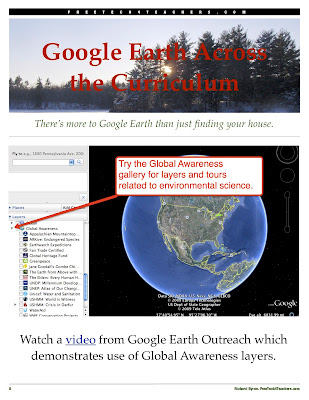
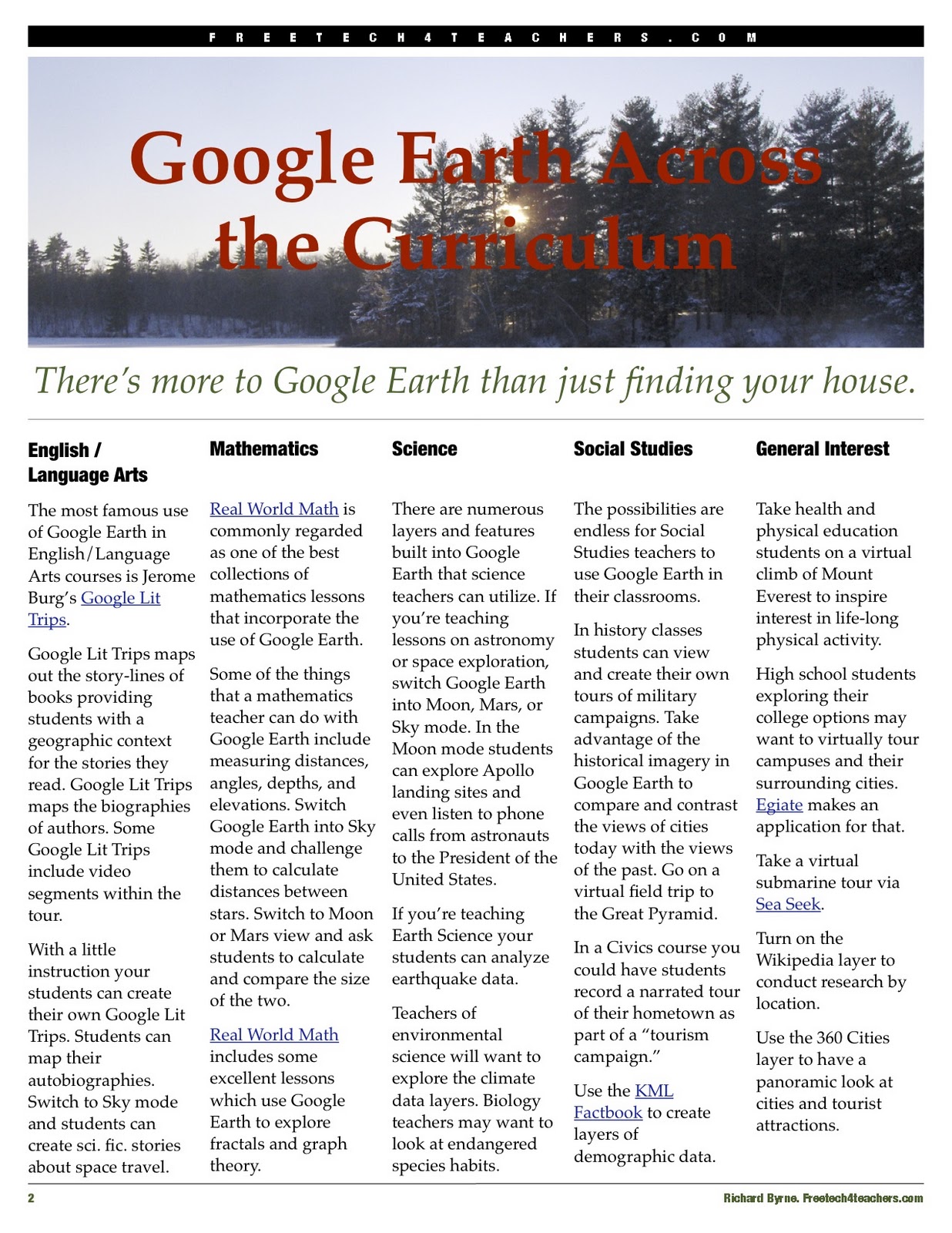
Google Earth is a great tool for yes, finding your house or your students finding their house, but there is so much more to using this application. Check out the documents below to learn a little bit more for your use and your students use. Click on the pictures to make them full screen.





Wednesday, March 30, 2011
More with Google
Found these cool search tools within Google, which some of you might already have known, called the Wonder Wheel, Timeline, and Social (have to be logged into your google account for this one).
Wonder Wheel allows you or your students to see their search results within a graphical web, along with them be located to click on the right hand side. What the graphical web provides is ideas related to their first search to better filter their results into exactly what they are looking for, within a graphical organizer.

Timeline allows you or your students to see their search results within a chronological, browsable, graphical timeline. These data sources include recent and historical news, blog posts, sports scores and more media results.

Social allows you or your students to see their search results from your social connections, friends and acquaintances as sometimes this information is more relevant and meaningful to look at. You must have a google account AND be logged in to be able to do this.

Explore and take a look by your self or with your students.
Subscribe to:
Posts (Atom)