Showing posts with label macintosh. Show all posts

Thursday, January 26, 2012

Findings at the AEA 267 InfoTech Advisory Board Meeting

I learned about TrueFlix (very similar to BookFlix but for 3rd-5th graders) yesterday at an AEA 267 meeting.  I have played around with it a little bit, but it is affiliated with AEA267 and uses the same AEA267 Username and Password assigned to each building.  It is not on the www.iowaaeaonline.org web site as not all AEAs in the state subscribe to it yet.  Take a look around, see if it would work for you, a couple students or all your students and if you think it might be beneficial add as a link to your SchoolFusion page(s).


I also learned about neibors.lib.overdrive.com for your AudioBook and/or eBook needs through the public libraries.  When you get to the web site, click on the Quick Reference Guide on the left hand side for more information, but essentially if you have a public library card you have access to download free audiobooks to be played on your computer or mp3 devices and access to download free ebooks for your ebook devices such as Kindle, Nook, iPad and more.

Tuesday, January 10, 2012

3 web sites you should check out soon!!

If you use Google Forms with your students as a formative assessment tool, and you want your assessments to be graded automatically, then you need to look into Flubaroo.  Simple and easy to use, and it does all of the work.  Seriously check it out.

From Tech & Learning:

Wednesday, December 21, 2011

Tech&Learning Web Sites

Some recent trends located within the Tech & Learning web site.

Creating the Classrooms our Students Need
Showcases why our students need:
Collaborative
Experiential and Community-Based
Authentic
Relevant
Inquiry-Driven
Creative
LEARNING!!

Five Things Students Want Their Teachers to Know about Online Learning
Socialization is Important
Students Want to See Each Other
Students Want to See Their Teacher
Students Want You to Know Them
Keep it Relevant

4 Ways to Bring the World to your Students
Global Fluency builds relationships
Global Fluency helps you understand, not just translate
Global Fluency bridges cultural differences
Global Fluency is the new resume differentiator

Tuesday, October 25, 2011

Using different Preview features

Preview is an application associated with Mac/Apple computers to open up PDF files and/or pictures and is very similar to Adobe Reader, except it can provide some additional features that can be of beneficial use for teachers and students.
First, to open up Preview look for this icon
in your dock at the bottom of your screen or within your Applications folder.
or
Open up an PDF file and/or picture and it should open up in Preview.

After you have a PDF file and/or picture opened up in Preview a few additional features that you can explore are:

Zooming=Zoom in or Zoom out using the + or - signs

Selecting=Select a part of the picture or PDF file, and the copy and paste it into a document


Annotating=Add additional text, circle/underline something important, use arrows to point to important words or an important part of a picture, etc.


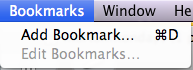
Bookmarking=If reading an article through Preview you can Bookmark the page you left off on, or an important page


Rotating=Rotate to the left or rotate to the right


Slideshow=Take your pictures or PDF files and easily turn them into a full screen slideshow

Sunday, September 25, 2011

Laptop Software Update

If you have not done a Software Update on your laptop lately, you need to complete this task soon and regularly.  1 reason is it keeps your computer up-to-date and working properly, but another reason is that it provides new features for the laptop and for the applications.
To complete your Software Update, which should be checked at least 1 time a week, you click on the Black Apple in the upper left-hand corner of the laptop and go 2 down and click on Software Update.


It will either state that the latest software is installed or it will give you a list of software to update.  If it lists software, could be just 1 or as many as 10, click install and let it do its work. Most of the times, your computer will need to be restarted after the installation of the new items.

Some things to consider:
The Software Update has to be done while at school using the Schools wireless Internet
Allow time for the installation of the software and for the restarting of the computer to take place.  A good time would be to start the installation when you leave your room for lunch, or when you are teaching a class/period where you do not need your laptop.

Thursday, June 9, 2011

Dock

Did you know that the applications at the bottom and sometimes on the side of your computer screen are just short cuts?  Where they are located is called the Dock.  These are not the full applications just the short cuts and if they are deleted (poofed) off of the dock they are not lost.  Also the applications in your dock can be removed and others can be added as the dock usually starts off with a default group of applications.

Thursday, March 31, 2011

Macintosh Efficiency

Being able to use your laptop (or any Mac laptop) more efficiently is vital to making better use of your time.  I try often to not use my mouse to click on buttons or actions, instead I try to use keyboard shortcuts, keyboard buttons, and trackpad shortcuts to make the use of my laptop more efficient.  Check out these next documents to provide you with some ideas.